



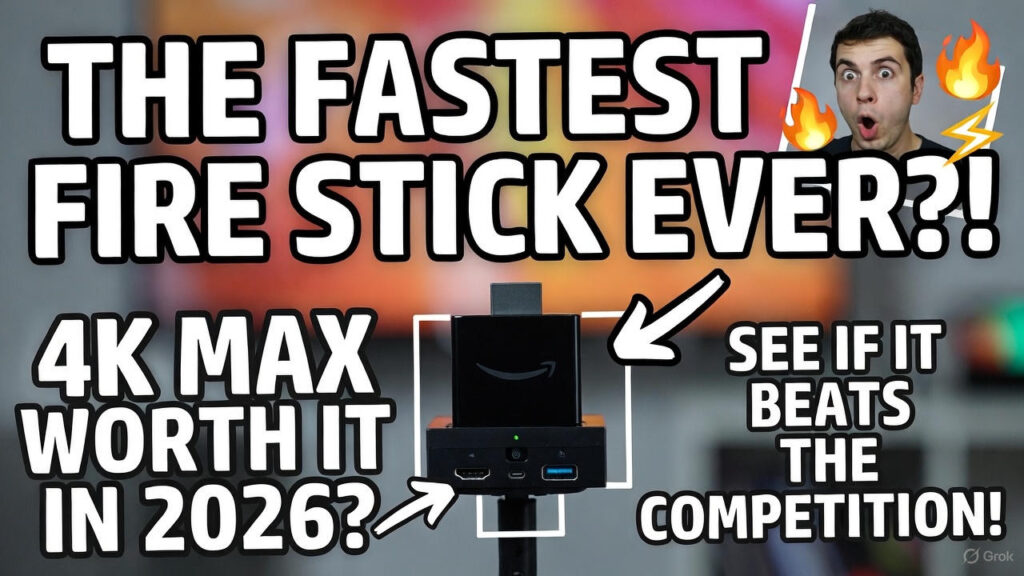
You want a simple way to get sharper 4K streaming, faster app starts, and a smoother connection on your TV. The Fire TV Stick 4K Max gives you a noticeable speed boost over the standard Stick and supports newer Wi‑Fi standards so streaming stays steady when multiple devices share your network. If you want better picture quality, quicker app navigation, and improved network performance without replacing your TV, the Fire TV Stick 4K Max delivers those gains in a small plug‑in device.
Setup only takes a few minutes, and the updated remote with Alexa makes searching and controlling playback easy. You’ll also find broad app support, HDR formats like Dolby Vision, and enough power to make casual gaming and multitasking feel snappier.
Key Takeaways
- Small plug‑in device upgrades older TVs with faster 4K streaming.
- Simple setup and Alexa voice control make it easy to use.
- Better Wi‑Fi and stronger processor improve performance and stability.
Key Features of Amazon Fire TV Stick 4K Max
This plug-in streamer boosts picture quality, wireless speed, processing power, and voice control. It aims to make apps load faster, streams run smoother, and smart-home commands feel more responsive.
4K Ultra HD Streaming
You get native 4K output with support for HDR10, HDR10+, Dolby Vision, and HLG for brighter highlights and better contrast on compatible TVs. The device can display up to 2160p, so movies and shows that offer 4K look sharper than on 1080p sticks.
Apps and services like Prime Video, Netflix, and Disney+ stream in higher bitrates when your internet and TV support them. The stick also handles frame rates and color depth improvements that matter for fast action and animated content. Make sure your HDMI port and cable are rated for 4K HDR to avoid limits in picture quality.
Wi-Fi 6 Support
The 4K Max includes Wi‑Fi 6E capability on the second-generation model, which lets you use the newer 6 GHz band if your router supports it. That reduces interference in crowded home networks and can give you steadier 4K playback, especially during busy hours.
If you don’t have a Wi‑Fi 6E router, the stick still works on 2.4 GHz and 5 GHz bands with noticeable improvements over older models. To see real benefits, pair the stick with a compatible router and a solid internet plan (25 Mbps or higher for most 4K streams).
Enhanced Performance
A 2.0 GHz quad‑core processor and increased RAM make the 4K Max more responsive than the standard Fire TV Stick. You’ll notice faster app launches, smoother navigation, and fewer hiccups when switching between apps or streaming multiple services.
The device also offers more storage for app installs and some models support expandable storage via USB adapters. That matters if you install many apps or games. Performance gains are most visible on older TVs or slow networks where the stick offloads work from the TV’s built-in software.
Audio and Voice Controls
The remote includes a built‑in microphone and works with Alexa for voice search, playback control, and smart‑home commands. You can ask Alexa to launch apps, find titles by actor or genre, control playback, and adjust smart lights or thermostats if you have compatible devices.
Audio formats include Dolby Atmos on supported content and receivers, so you can get object‑based surround sound with a suitable soundbar or AV receiver. The stick also supports volume control and TV power via the remote’s IR and HDMI‑CEC features, reducing the number of remotes you need.
Setting Up Your Amazon Fire TV Stick 4K Max
You will unbox the stick and accessories, plug the device into your TV and power, then follow on-screen prompts to connect Wi‑Fi and sign in. The process takes about 5–10 minutes if you have your Amazon account info and TV remote ready.
Unboxing and Contents
Open the box and check for these items: the Fire TV Stick 4K Max, an Alexa Voice Remote (Enhanced), a USB power cable, a power adapter, two AAA batteries, and an HDMI extender. If any item is missing, contact the seller before proceeding.
Keep the HDMI extender handy if the TV’s HDMI ports are crowded or hard to reach. Use the power adapter in the box rather than a TV’s USB port for stable power. Insert the AAA batteries into the remote before you try to pair it.
Keep your Amazon account email/phone and password nearby. If the stick came pre-registered, you can skip account entry. If not, you will register during setup.
Connecting to Your TV
Plug the Fire TV Stick into an open HDMI port on your TV. Use the HDMI extender if the stick won’t fit or if the TV sits close to a wall. Remember which HDMI port you used so you can select it with your TV remote.
Connect the USB cable to the stick and the other end to the included power adapter. Plug the adapter into a wall outlet. Avoid powering the stick from the TV’s USB port to reduce slowdowns and unexpected shutdowns.
Turn on your TV and switch to the HDMI input you used. You should see the Fire TV startup animation within a few seconds. If nothing appears, recheck the HDMI connection and power cable.
Initial Configuration
When the Fire TV boots, the remote should prompt pairing. Press the Home button for about 10 seconds if it does not pair automatically. Follow on-screen prompts to select language.
Choose your Wi‑Fi network and enter the password using the on-screen keyboard. The Fire TV Stick 4K Max supports Wi‑Fi 6 but also works on older networks; connect to the fastest stable network available.
Sign in with your Amazon account when prompted. If you bought the device through your Amazon account, it may already be registered. Complete optional steps like location, privacy settings, and app preferences to finish setup.
Streaming Content and App Compatibility
You get access to most major streaming stores, apps, and live TV options. The device supports 4K content, Dolby Atmos on select titles, and a large app ecosystem that fits most viewing needs.
Supported Streaming Services
The Fire TV Stick 4K Max runs Fire OS and supports top apps like Netflix, Prime Video, Disney+, Hulu, HBO Max (Max), and YouTube. It can play 4K UHD streams when your TV and app offer 4K content. Dolby Atmos audio works on select Prime Video, Netflix, and Disney+ titles when your sound system supports it.
You can find over a million movies and TV episodes through storefronts and apps. App availability varies by country, so check your region’s app store. The device also supports many niche and free ad-supported services, expanding options beyond paid subscriptions.
App Installation and Management
You install apps from the Fire TV Appstore using the remote or voice search with Alexa. The Stick includes 16 GB of storage, so you should manage space if you download many apps or games. To free space, move less-used apps off the device or use cloud-based apps rather than large local downloads.
App updates install automatically by default, but you can update manually in Settings > Applications. You can also sideload apps, though that requires enabling Developer Options and carries security risks. Use official store apps when possible for safer updates and compatibility.
Live TV Integration
The Stick integrates live TV through app-based services and live TV features like Pluto TV, YouTube TV, Sling, and local network apps. It supports live channels inside provider apps and offers a free Live tab with channels and guide-style browsing for some services.
You can plug in an antenna with a compatible tuner or use networked DVR apps for local channels if you prefer over-the-air content. Channel guides, favorites, and recording depend on the third-party app or service, not the Stick itself, so check each provider’s features for DVR, simultaneous streams, and local channel support.
Alexa and Smart Home Integration
The Fire TV Stick 4K Max works with Alexa to give you voice control, media commands, and smart home device control from your TV. You can use the remote or any Alexa-enabled speaker on the same account to control playback, lights, locks, thermostats, and scenes.
Voice Commands
You can use the Alexa Voice Remote Pro or an Echo device to control the Fire TV Stick 4K Max hands-free. Say clear commands like “Alexa, play Stranger Things on Netflix,” “Alexa, pause,” or “Alexa, fast forward 10 minutes.” The remote’s dedicated mic and support for wake word on linked Echo devices make responses fast and reliable.
Use channel-specific phrasing for best results: include the app name (for example, “on YouTube” or “on Prime Video”) when you want a specific source. You can also ask Alexa for content discovery: “Alexa, find comedies with Tom Hanks.” Voice control covers navigation, app launching, playback speed, and search across installed streaming apps.
Device Control with Alexa
The Fire TV Stick 4K Max can link to your Alexa account to control smart home gear. You can toggle lights, adjust thermostats, lock doors, and trigger routines that include your TV. For local control and better responsiveness, use devices that support Thread or Matter if your network and devices support those standards.
Set up devices in the Alexa app and assign them to groups or rooms for targeted commands like “Alexa, turn off living room lights.” You can also build routines that combine TV actions with smart-home events, for example: dim lights and start a specific app when you say “Alexa, start movie night.”
Gaming and Performance Optimization
You can play casual Android ports, cloud-streamed AAA titles, and a mix of indie games. You’ll get the best experience by using a controller, reducing background apps, and optimizing your network and device settings.
Game Availability
The Fire TV Stick 4K Max runs Android-based games from the Amazon Appstore and supports cloud gaming services like Xbox Cloud Gaming and Luna through compatible apps. Expect many indie, puzzle, and casual titles to run natively. Heavier 3D games often require cloud streaming or sideloaded apps that may not be fully optimized.
Check controller support before you buy a game. Bluetooth controllers (Xbox, DualSense, and many third‑party pads) pair easily and cut input lag compared with the remote. Storage limits mean you may need to delete apps to free space for large installs.
Improving Speed and Responsiveness
Enable Game Mode to reduce input lag and prioritize performance when playing. Keep Fire OS up to date so you get fixes and performance tweaks from Amazon. Close background apps and uninstall unused apps to free RAM and storage.
Optimize your network: use 5 GHz Wi‑Fi or an Ethernet adapter for lower latency and steadier bandwidth. If you stream games, aim for at least 10–20 Mbps per stream and turn off other heavy network uses. Use a powered USB hub only if needed; unpowered accessories can cause slowdowns or disconnects.
Troubleshooting and Maintenance
Keep the Fire TV Stick powered, connected, and updated to avoid most issues. Quick restarts, checking cables, and installing updates solve many problems without resetting your device.
Common Issues and Fixes
If your Fire TV shows a black screen, first check the HDMI connection and try a different HDMI port or the included HDMI extender. Use the original power adapter; weak USB power from the TV can cause boot or performance problems.
If apps freeze or load slowly, clear the app cache: Settings > Applications > Manage Installed Applications > select app > Clear cache. For persistent app crashes, uninstall and reinstall the app.
If the remote won’t pair, replace the batteries and press and hold the Home button for 10 seconds to re-pair. If voice functions fail, check the remote mic and the app’s permissions.
For Wi‑Fi drops, move the router closer, remove obstructions, or switch the Fire TV to a 5 GHz band if supported. Restart the router and the Fire TV when speeds or streaming quality drop.
Use a restart as a first step for odd behavior: Settings > My Fire TV > Restart. Frequent overheating may indicate blocked vents or a tight TV back panel—improve ventilation or unplug the device between long sessions.
Software Updates
Keep system software current to ensure app compatibility and security. Go to Settings > My Fire TV > About > Check for Updates and install any available updates. Updates may take several minutes and the device will restart automatically.
Enable automatic updates so your Fire TV installs firmware and app updates overnight. To manually check app updates, open the Appstore, go to Library, and update individual apps.
If an update fails, reboot the device and try again. If it repeatedly fails, disconnect from VPNs, ensure stable internet, and try a wired power source instead of TV USB power. Save any app sign-ins before updating services that require reauthentication.
Factory Reset Procedure
Factory reset erases all accounts, apps, and settings. Only use this when other fixes fail or before giving away the device. Back up important app credentials and note Wi‑Fi login details first.
To reset from menus: Settings > My Fire TV > Reset to Factory Defaults. Enter your PIN if prompted and confirm. The reset process can take 5–15 minutes and the device will restart to the initial setup screen.
If the menus are inaccessible, perform a reset by holding the Back and Right directional buttons together for about 10–15 seconds while the device is powered on; release when the reset prompt appears. After reset, reconnect to Wi‑Fi and sign in to your Amazon account to complete setup.
Discover more from Whiril Media Inc
Subscribe to get the latest posts sent to your email.


Leave a comment